
Google Drive as a knowledge base? How to turn the chaos into a system
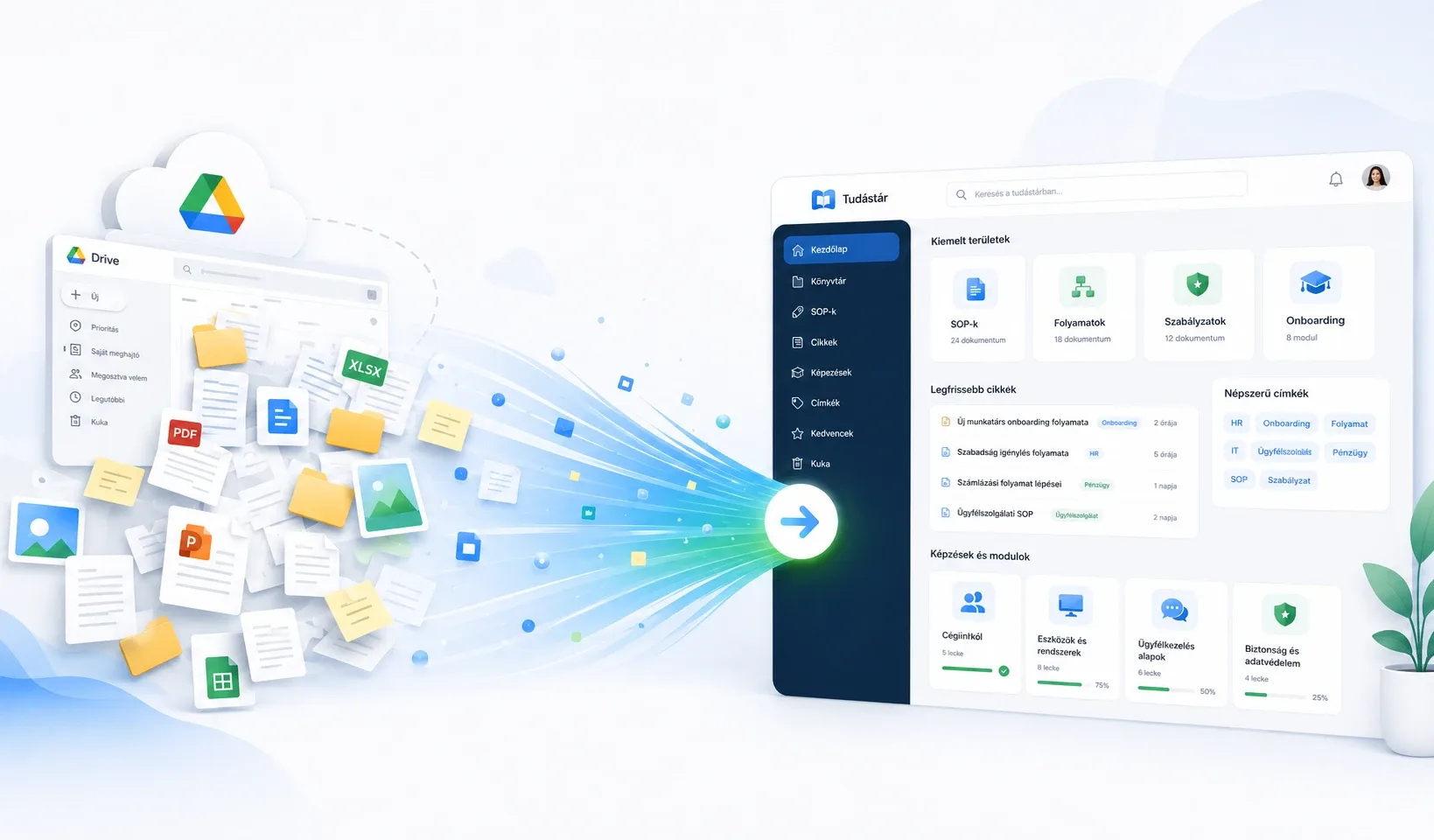
Most of your company’s knowledge is probably already written down. It just lives in Google Drive, somewhere between the “IMPORTANT company stuff” and “Old_backup_2023” folders. The good news is that you do not need to rewrite any of it: Word and PDF files exported from Drive can become a proper knowledge base automatically. The real work is the sorting, not the technology, and that is exactly what this guide walks you through.
Knowledge base: a searchable, permission-controlled shared home for the company’s documents that also knows what storage cannot: who has been assigned a document, who has read it, and where everyone stands.
Why isn’t Drive enough?
Drive is excellent storage, and it does exactly what storage should: it holds and shares files. The trouble starts when a company tries to use Drive as its knowledge base.
Search thinks in file names
Your colleague does not know the answer lives in “processes_v3”; they know they need “how do I issue a refund”. When search fails at that, the old solution returns: ask the person who knows, who then answers the same question for the twentieth time that day.
There is no learning in it
Drive does not know which document your new hire has read, or which one they should read next. No sequence, no progress, no checks: onboarding turns into a link dump whose fate you never hear about again.
Order is a private matter
Everyone organises folders by their own logic, and the knowledge of where things live travels by email. When the person who owns the folder structure leaves, the order leaves with them.
What should you move, and what should you not?
The biggest mistake is moving everything as-is: chaos stays chaos at a new address. Three piles are enough for the sorting:
| Pile | What belongs here? | What happens to it? |
|---|---|---|
| Living knowledge | process docs, templates, training material, policies | moves to the knowledge base |
| Official documents | contracts, certificates, licences | separate, protected vault |
| Dead weight | duplicates, “v2_final_REALLY” versions, outdated files | stays behind |
Two practical rules for the sorting. If a document exists in several versions, only the latest one moves; the rest stay in Drive as an archive. And if you cannot decide whether something is still needed, ask the person who would use it; if nobody misses it for two weeks, you have your answer.
How do you move out of Drive, step by step?
1. Design the structure before you upload
Think through the main areas of your company’s knowledge: customer service, finance, equipment, HR. The good news: you do not have to squeeze it into a scheme a tool dictates. In Corganize the knowledge base is made of folders, just like your computer, with your names, and you can rearrange it any time.
2. Export what you selected
Download Google Docs as Word files (File → Download → Microsoft Word), PDFs as they are. For larger volumes, Google Takeout exports a whole folder tree to docx in one pass.
3. Upload folder by folder
In Corganize you upload an entire folder at once: every Word and PDF document becomes a lesson automatically, and the images inside Word files come along. No copy-pasting file by file, and no reformatting either: if the source is messy, AI cleans up the draft in one step, and you only review the result. Coming from Notion is even simpler: a Notion export imports directly.
4. Review and publish
Imported material arrives as drafts: you review, refresh what is outdated, then publish. This is also the right moment to reshape your most-used documents along the rules of a well-written SOP: short, numbered, one task per doc. For anything undocumented, the fastest fix is a screen recording turned into a step-by-step doc.
5. Assign it, and close the old one
A knowledge base comes alive when people use it: assign areas to the people they concern, and build the new hires’ day-by-day onboarding from the same content. After that, set the old Drive folder to read-only: if there are two places to work in, there will be two places, and in six months you will be searching again.
How much work is it in total?
For a typical small business migration, sorting takes a few hours, the transfer takes minutes, and the review takes as long as the content deserves. Our own experience from our own migration: we moved a 26-lesson knowledge base out of Notion in a single import, and the real work there was also the review, not the moving.
The order is what matters: sort first, then structure, then upload. Do it backwards and you are migrating chaos; do it this way and you are building a system out of it.
Frequently asked questions
Can I move my Google Drive documents into a knowledge base?
Yes. Google Docs export cleanly to Word (.docx), PDFs move as they are, and uploading a folder into Corganize turns every document into a lesson automatically, images included.
What is the difference between Drive and a knowledge base?
Drive is storage: it holds files but does not know who has read what, and it cannot train anyone. A knowledge base makes the same content searchable, assignable and verifiable: you see who has covered what.
How long does the migration take?
Sorting is the bulk of the work, typically a few hours. The transfer itself is fast: folders upload in one go and become lessons automatically, and AI can clean up messy formatting in a single step.
Can I migrate from Notion too?
Yes, a Notion export imports directly into Corganize. We migrated a 26-lesson knowledge base from Notion in a single import ourselves.
What about official documents that are not training material?
Contracts, certificates and licences belong somewhere separate: in Corganize they live in a specially marked, protected vault inside the same folder tree, instantly viewable as images or PDFs, visible only to the people you share them with.
Your Drive is knowledge, not storage
Upload your existing Word and PDF documents folder by folder into Corganize: each one becomes a lesson, searchable, assignable, with visible progress. You get order by moving, not rewriting.
Request access