
How to Import Notion into Corganize: Move Your Knowledge Over
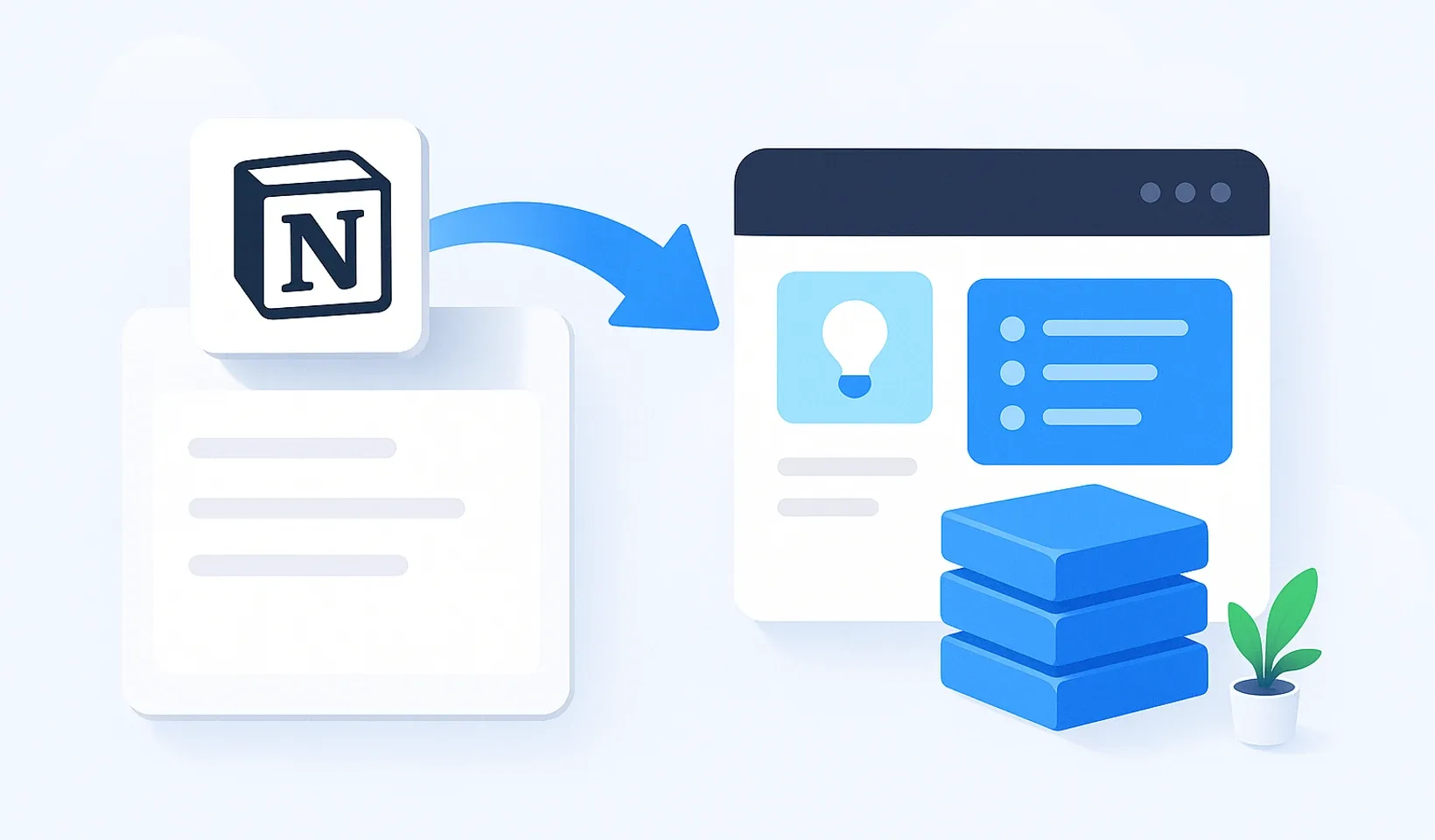
If your company knowledge has piled up in Notion and you now want to move it to a place built for training and process documentation, it comes down to a single sentence: you export a ZIP from Notion in “Markdown & CSV” format, drop it into the Corganize knowledge base, and the system turns it into documents. No account linking, no live sync: your ZIP is the raw material, and the system processes it.
After processing you get draft documents, not finished, published material. That is not a flaw, it is the process: you review, arrange the folder structure, and publish. That way the years of work you put into Notion are not lost, but become searchable, assignable training material. Let’s walk through how to do it flawlessly.
Notion import into Corganize: using Notion’s built-in “Export” feature you create a ZIP file of the selected pages in Markdown & CSV format, then upload that ZIP to the Corganize knowledge base. The import becomes draft documents that you publish after review. No account connection or continuous sync is needed.
Why isn’t Notion enough when it comes to training?
Notion is a great notes and project surface, but it wasn’t designed for training. When a new person joins, there is no training plan that unlocks by date, no quizzes and progress tracking, no acceptance-based statement you can send out that leaves a timestamped, traceable record proving the colleague received and accepted it. The knowledge is there, but you can’t guide a person through it, and you can’t prove it reached them.
That’s why it’s worth moving your important material to a place built specifically for company knowledge and training. The good news: you don’t have to rewrite anything. What you wrote in Notion can be moved over, and from then on it lives on as a document, as searchable knowledge, as a training step.
How much work is this really?
Less than you expect. You export from Notion, drop the ZIP into the knowledge base, and a few minutes later the draft documents are there, images included. No copy-pasting, no reformatting, no dragging images back in one by one.
The real work is the review: you decide what’s needed at all, what belongs where in the folder tree, and what’s already outdated. But that isn’t typing, it’s deciding, and that’s exactly why it can’t be automated. The system takes the monotonous part off your shoulders.
There’s a cost that usually doesn’t come to mind: while the knowledge is half here and half there, people don’t know where to look. Searching around charges you every single day, whereas the move is a one-time job.
How to export from Notion step by step
It all starts with getting the material out of Notion in the right format. This is the most important part, because Corganize can turn the “Markdown & CSV” export into documents.
- Pick your starting point. In Notion, open the top-level page (or workspace section) under which the content to migrate lives. The export brings the subpages too, so it’s worth starting from a well-organized root page.
- Open the export. From the top-right ”…” menu, choose “Export”.
- Format: Markdown & CSV. Don’t pick PDF or HTML. The ZIP will contain the text as markdown and the images too.
- Turn on subpages. With the “Include subpages” option you bring the whole tree in one go, not page by page.
- Download the ZIP. For a large workspace, Notion sends the download link by email, which can take a few minutes.
That’s the Notion side. Don’t unzip the ZIP, you upload it as is.
How does it get into Corganize?
Uploading happens on the Content tab of the knowledge base. Two paths lead here, and both go to the same place:
- Add → Notion export (ZIP), then you select the downloaded file.
- Or simply drag the ZIP onto the content tree.
During processing a window shows the system at work, and at the end it reports how many documents and how many images arrived, and into which folder. From there you can jump straight to it with one button so you don’t have to hunt: in a large knowledge base the new folder lands at the end of the list.
You can bring in more than just Notion exports. A single Word or PDF file becomes a document on its own, and you can drag in an entire folder from your computer too: the folder structure is preserved the same way, and the images next to the text are included in the documents. For a Google Doc, in the File menu under Download choose the Word (.docx) format: Google embeds the images into that, so they end up in your knowledge base instead of loading from Google.
What you get in this case:
- Draft documents. Nothing becomes public automatically, so no unreviewed material can slip out to the team.
- An “Imported” marker on the imported folder and on every document. It tells you no one has touched this yet. The marker disappears on its own as soon as you activate, move, or edit the given item, so you can see at a glance on the tree how far you’ve gotten with the review.
- The images too, placed back into the text. Whatever Notion didn’t include in the export, the system can’t add, and the report tells you so.
One thing worth knowing in advance: the imported material counts against your plan’s document quota. If you want to move a large workspace in one go, this quota determines how much fits.
What to do with the drafts?
- Review them. The text and structure are mostly there, but it’s worth running through: are the headings and lists in the right place, is the image next to the text.
- Arrange the folder tree. The Corganize knowledge base is folder-based and can be up to six levels deep. This is where you decide what goes into which topic. Weigh this according to your own logic, not Notion’s old structure.
- Publish the document. When it’s in order, you publish it. From then on it’s searchable, assignable, and can be built into a training plan, where it behaves as a lesson: it has order and progress.
If some old Notion page was raw or messy, you can bring in AI formatting there: it turns raw text into organized training material. This works on drafts (it won’t rewrite published material behind your back) and costs credits, so it’s not worth running on every page, only where the original really is a mess. This is one of the strengths of the Corganize internal knowledge base.
A walked-through example: an 8-person agency’s migration
Let’s take a marketing agency. The owner, Dóra, noticed that she explains the same campaign-launch process to every new hire, because although it’s written down in Notion, no one can find it, and there’s nothing in it that would guide a newcomer through.
Day 1. In Notion, Dóra puts together a root page called “Agency operations” and drags the scattered pages under it (campaign launch, client handover, reporting, tone of voice). She exports in Markdown & CSV, subpages included. The ZIP arrives by email a few minutes later.
Same day. She drags the ZIP onto the knowledge base’s Content tab. The window reports what arrived and into which folder, and with one click she’s right there. The documents are drafts, with the “Imported” marker.
Day 2. Dóra goes through the drafts. The old Notion page for the campaign-launch process was very raw, so she runs AI formatting on it: clean headings and numbered steps come out of it. She just reviews the rest, fixes a heading here and there, and publishes. The “Imported” marker disappears from what she’s already worked on, so she can see what’s left.
Day 3. From the published campaign-launch material she puts together a training plan: broken down by days, with check questions. She creates a group with a “New marketer” onboarding package, to which she assigns this plan and two statements (confidentiality, tool use).
2 weeks later. The first new colleague joins. On their first login they automatically receive the training plan and the statements. Dóra doesn’t explain anything live: the material that until now lay dead in Notion now guides the person through. The old pages weren’t lost, they’re working.
What NOT to do during the import
Three mistakes that eat a lot of time if you don’t watch for them:
-
Don’t expect live sync. Corganize doesn’t connect to your Notion account and doesn’t watch your changes. What you export and upload is what gets in, as a snapshot. If you later modify something in Notion, you either change it in Corganize too, or you re-export. Don’t build a continuous double life after the migration: decide where the knowledge lives, and move over completely.
-
Don’t upload the whole workspace without curating. Notion holds tons of half-finished notes, one-off project pages, and outdated drafts. If you bring everything in, you’re moving the chaos, just to a new place. First, in Notion, put under a root page what really is knowledge and process, and export only that.
-
Don’t think a draft is finished material. The result of processing is deliberately a draft. If you publish it without review, a slipped bit of formatting or a misplaced image could remain. That’s exactly why the “Imported” marker is on the tree: it shows what no one has touched yet.
How do you make sure the moved-over knowledge actually gets used?
The migration alone isn’t enough. Many companies move over, then out of old habit everyone still keeps asking the colleague in their ear. A few things to avoid this:
- Close down the old. When a topic has moved over and is published, in Notion put a note at the top: “This has moved, from now on look in the knowledge base.” If it lives in two places, they’ll always look at the wrong one.
- Introduce one topic first. Don’t start with every process in the whole company. Pick the most frequently asked thing (in the example, the campaign launch), move that over properly, and get the team used to it. Success will pull the rest along.
- Tie it to daily work. When someone asks about something you have a document for, don’t answer verbally: send them the link. After two weeks of this reflex, people will search on their own.
- Show the search. In the knowledge base you can search the text, and you can ask the AI assistant a question in a full sentence, and it answers from your own material. Convenience is the best way to build the habit.
If you want to go deeper into how scattered material actually becomes a working system, read the article on the 5 myths of building a company knowledge base too.
Migration self-check list
Before you declare the move done, run through this:
- In Notion I organized under a root page what really is process and knowledge (not half-finished notes).
- I exported in Markdown & CSV format, with subpages turned on.
- I uploaded the ZIP as is, I didn’t unzip it.
- From the feedback window I know how many documents arrived and into which folder.
- I reviewed every draft, and ran AI formatting on the raw pages.
- I arranged the folder tree by our own logic, I didn’t copy the old Notion structure.
- There’s no more “Imported” marker on the tree for what I’ve reviewed.
- I published, and tested the search with a real question.
- In Notion I signaled that the given topic has moved.
- I built at least one published document into a training plan.
If everything is ticked, then you didn’t just bring the material over, you made a working system out of it. In Notion the knowledge just lay there; here it works: it guides, it’s searchable, and it proves itself.
Frequently asked questions
Do I have to connect my Notion account to Corganize?
No. There's no account linking and no live sync. You export a ZIP from Notion in "Markdown & CSV" format and upload that. The system processes this snapshot.
What format should I export from Notion in?
In Notion's "Export" menu choose the "Markdown & CSV" option and turn on subpages ("Include subpages"). Upload the downloaded ZIP as is, don't unzip it.
Do I get finished lessons, or do I have to review them?
You get draft lessons. The text and structure are mostly there, but you review, arrange the folder tree, and publish yourself. For rawer pages, AI formatting helps.
If I later modify something in Notion, does Corganize update?
No, because there's no live connection. You either carry the change over in Corganize too, or re-export and upload. That's why it's worth keeping the knowledge in one place after the migration.
Can I see the import being built in real time?
No. The processing is queued, and when it's done you get a bell notification and an email. After that you can open the drafts.
Move your Notion knowledge into a working system
Try the Corganize knowledge base and see how fast your old Notion pages become searchable, assignable training material.
Try Corganize